

![[FREE] - How To Add Volume Discount in Shopify with Sale Badge](/_astro/_FREE_%20-%20How%20To%20Add%20Volume%20Discount%20in%20Shopify%20with%20Sale%20Badge.DeAH13EL_WMT7r.webp)
![GPT-6 Astra + OpenCode - 3D WordPress Websites [This is INSANE]](/_astro/GPT-6%20Astra%20_%20OpenCode%20-%203D%20WordPress%20Websites%20_This%20is%20INSANE_.CFF0euP5_3Xbbj.webp)
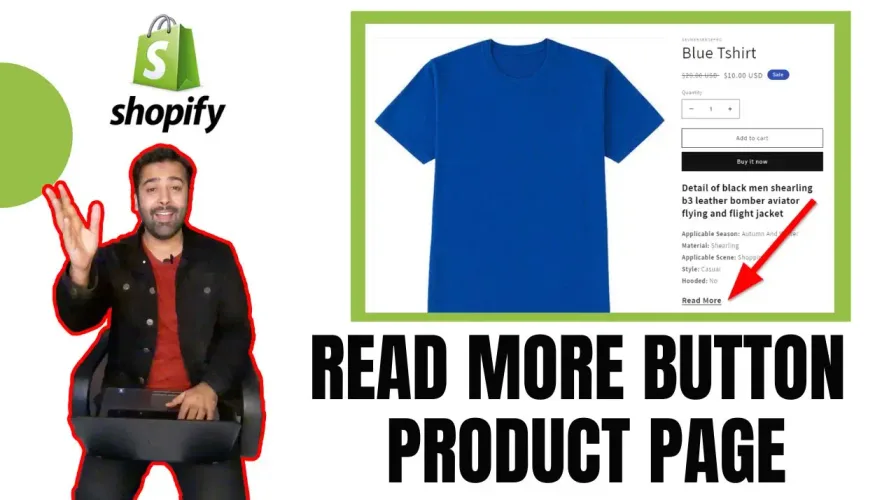
Adding a Read More button in Shopify is a great way to keep your product descriptions concise while still providing enough information for your customers. In this video, I’ll show you how to add a Read More button in Shopify and style it to match your store’s design.
1. jQuery Code
Make sure to include jQuery and add the following code in Theme.liquid:
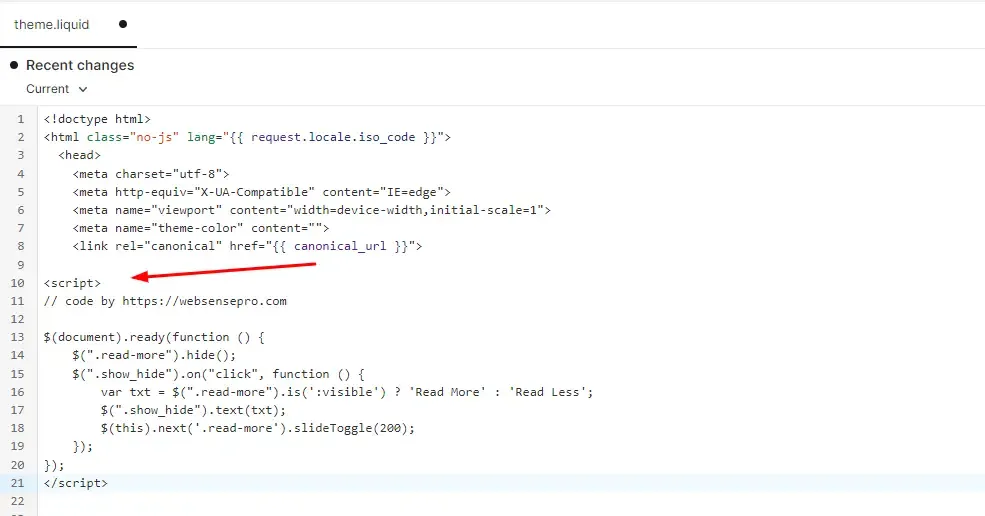
<script>
// code by https://websensepro.com

$(document).ready(function () {
    $(".read-more").hide();
    $(".show_hide").on("click", function () {
        var txt = $(".read-more").is(':visible') ? 'Read More' : 'Read Less';
        $(".show_hide").text(txt);
        $(this).next('.read-more').slideToggle(200);
    });
});
</script>
2. HTML Code
Add the following HTML Code in your product description, note where it says Your Product Description which you need to replace with your own product description.
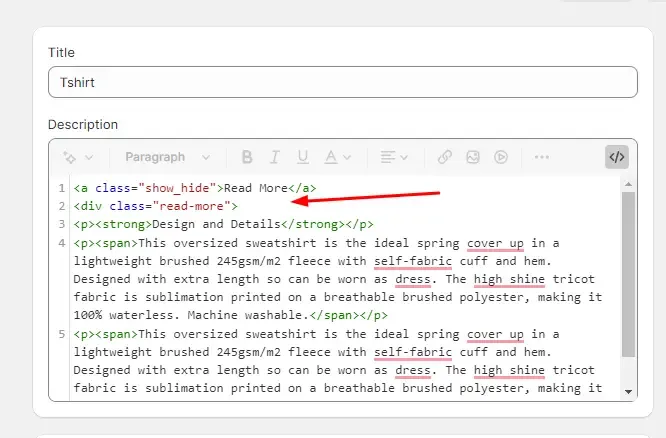
<a class="show_hide" >Read More</a>
<div class="read-more">

  Your Product Description

</div>
3. CSS Code
Add the following code to your CSS file. If you are using the Dawn theme you will need to add the following code in base.css file
/* code by https://websensepro.com */
.show_hide {
  cursor: pointer !important;
  font-weight: bold;
  text-decoration: underline;
  text-decoration: underline;
  font-size: 20px;
}
4.4/5 · 15 votes