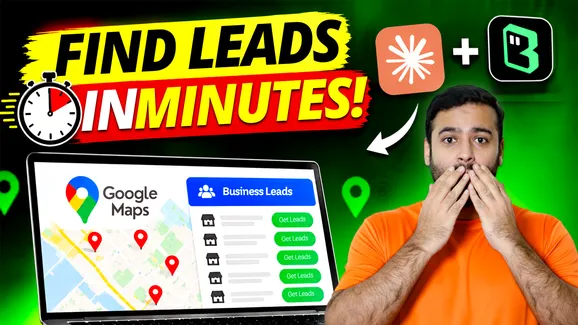



Finding potential clients on Google Maps can take hours, especially when you’re manually collecting business names, websites, phone numbers, and addresses.
But what if an AI agent could handle most of that work for you?
In this tutorial, we’ll show you how to automate Google Maps lead generation using Claude Desktop and BrowserAct, without writing custom scraping code.
Whether you’re running a marketing agency, offering SEO services, or looking for local business leads, this workflow can make prospect research much easier.
Step 1: Install BrowserAct CLI
First, you’ll need BrowserAct, a browser automation tool that allows AI agents to interact with websites.
Instead of manually opening pages and copying information, BrowserAct can help your AI agent navigate websites, interact with elements, and extract business data.
Open your terminal and install BrowserAct CLI using this command:
uv tool install browser-act-cli --python 3.12Once installed, verify that everything is working:
browser-act --versionYou’ll need Python 3.12 and the uv package manager available for this installation method.
Step 2: Connect BrowserAct with Claude
Next, configure BrowserAct so Claude can use it to control a browser.
This is where things get interesting.
Instead of building a traditional web scraper, you can give Claude instructions in plain English and let the connected browser tool handle the navigation.
Follow the connection process shown in our video to complete the setup.
Step 3: Ask Claude to Find Google Maps Leads
Now comes the fun part!
Let’s say you’re running an SEO agency and want to find dentists in New York City.
You can give Claude a simple prompt:
Example Prompt:
“Use BrowserAct to find 20 dental clinics in New York City on Google Maps. Collect their business names, phone numbers, websites, addresses, and Google Maps URLs. Save everything in a CSV file and report any listings that couldn’t be processed.”
With BrowserAct connected, Claude can attempt to:
- Open Google Maps and search for relevant businesses.
- Browse available business listings.
- Collect publicly visible contact information.
- Organize the results into structured data.
No need to manually copy and paste every listing!
Step 4: Export Your Business Leads to CSV
Once the research is complete, ask Claude to organize the collected information into a CSV file.
Your lead list can include:
- Business Name
- Phone Number
- Website URL
- Business Address
- Google Maps URL
You can then open the file in Excel or import it into Google Sheets.
It’s a useful starting point for building prospect lists, reviewing local businesses, and planning personalized outreach.
Quick tip: Always verify the information before contacting businesses, since some Google Maps listings may have missing or outdated details.
Step 5: Reuse the Workflow for Other Businesses
The best part about this setup is that you don’t have to start from scratch every time.
Want to find restaurants in Chicago instead of dentists in New York?
Simply change your prompt.
You can use the same workflow to research different business categories, cities, or local markets.
Just remember to follow applicable data-use rules and outreach regulations.
Why Use Claude and BrowserAct for Lead Generation?
The biggest advantage is saving time on repetitive research.
Rather than spending hours browsing individual Google Maps listings, you can use AI-assisted browser automation to collect and organize publicly available business information.
This makes the workflow especially useful for SEO agencies, freelancers, sales teams, and lead generation specialists.
Final Thoughts
If you’re still collecting Google Maps leads manually, Claude and BrowserAct offer an interesting way to simplify your workflow.
With a one-time setup and a simple prompt, you can automate much of the business research process and export your findings into a usable lead list.
Watch our full video tutorial to see the setup and lead generation workflow in action.
And let us know in the YouTube comments: What type of business leads would you like to find using AI?