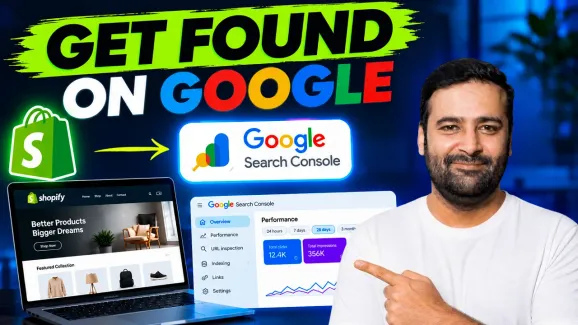


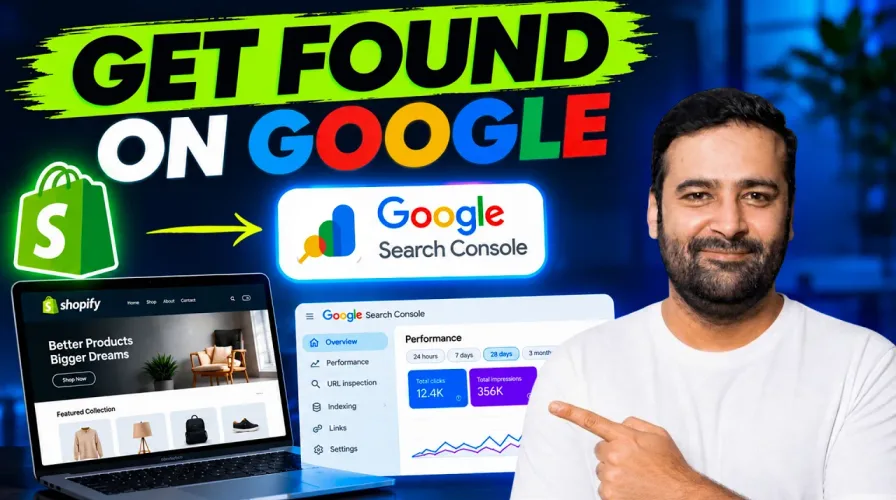
Want to track your Shopify store’s Google rankings, organic traffic, and search performance? Google Search Console is a free tool that helps you understand how customers find your store through Google Search.
In this beginner-friendly guide, we’ll show you how to connect Google Search Console to Shopify, verify your store ownership, and check your search visibility.
Step 1: Open Google Search Console
-
Visit Google Search Console.
-
Click Start Now and sign in with your Google account.
-
Open the property dropdown and click Add Property.
-
Select URL Prefix and enter your Shopify store’s full URL, including `https://`.
-
Click Continue.
Tip: The URL Prefix method is beginner-friendly because you can verify ownership directly through your Shopify theme without changing DNS settings.
Step 2: Access Your Shopify Theme Code
Next, you’ll need to add a Google verification tag to your Shopify store.
-
Log in to your Shopify Admin.
-
Navigate to Online Store → Themes.
-
Click the three-dot menu next to your current theme.
-
Select Edit Code.
-
Search for and open the `theme.liquid` file.
Important: Duplicate your Shopify theme before editing its code to keep a backup.
Step 3: Add the Google Search Console Verification Tag
Return to Google Search Console and follow these steps:
-
Find the HTML Tag verification option.
-
Copy the Google site verification meta tag.
-
Go back to your Shopify `theme.liquid` file.
-
Paste the verification tag inside the `
` section, preferably just above the closing `` tag. -
Click Save.
That’s it! Your Shopify store now has the verification code needed to connect with Google Search Console.
Step 4: Verify Your Shopify Store
Once you’ve saved the changes:
-
Return to Google Search Console.
-
Click Verify under the HTML Tag method.
-
Wait for Google to confirm ownership.
-
Click Go to Property to access your dashboard.
If you see a message saying “Processing data, please check again in a day or two,” don’t worry. New properties often need time before search performance data becomes available.
Step 5: Check Your Shopify Store’s Google Search Performance
After verification, Google Search Console helps you monitor important SEO metrics, including:
- Total Clicks: How many visitors click your website from Google Search.
- Total Impressions: How often your store appears in Google search results.
- Search Queries: Keywords customers use to find your store.
- Average Position: Your store’s average ranking for search queries.
- Indexing Status: Which pages Google has discovered and indexed.
These insights help you identify opportunities to improve your Shopify SEO and attract more organic visitors.
Step 6: Understand Google AI Overviews and Search Visibility
Google’s AI-powered search features create additional opportunities for Shopify stores to appear in search results.
The video also demonstrates a Search Generative AI setting. If this option is available in your Search Console account, review its inclusion settings.
Keep in mind: Verifying your Shopify store does not automatically guarantee placement in Google AI Overviews. Google’s AI features determine which content to display, and visibility depends on Google’s indexing, content quality, and relevance.
Final Thoughts
Connecting Google Search Console to Shopify is one of the easiest ways to start monitoring your store’s SEO performance. With just a few simple steps, you can verify your website, track organic traffic, and discover which search queries bring customers to your store.